Part 2
Navigation System Diagnostic Mode (Part 2)
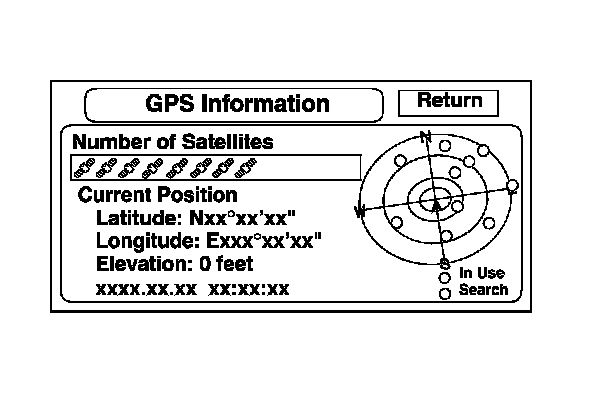
GPS Information
This screen shows the current status of GPS reception. The circular diagram shows the current location of the GPS satellites (yellow balls) as they would appear in the sky. The outer circle represents the horizon (0 degrees elevation). The middle and inner circles represents 30 and 60 degrees respectively. The very center of the diagram (90 degrees elevation) is directly overhead. Nearby obstructions, like tall buildings, will block satellites in that direction. That is why it is necessary to be in an open area to effectively troubleshoot GPS reception issues. The satellites shown on the diagram correspond to the PRN number in the GPS Details screen. There are always 24 active GPS satellites in orbit. Because satellites fail, and have to be removed from service, spares are always parked in orbit, ready to be activated. This is why the PRN (satellite ID number) can be greater than 24.
NOTE:
- When you use this screen for troubleshooting, park the vehicle outside, away from buildings, tall trees, and high-tension wires for at least 10 minutes with the engine running.
- Metallic window tinting on the front or side window or after-market electronic accessories mounted near the navigation unit, GPS antenna, or navigation display can interfere with GPS acquisition.
- The Number of Satellites box shows the number of acquired satellites (maximum of 12). It should contain 4 or more icons. If not, troubleshoot for GPS icon is white or not shown. Symptom Troubleshooting
- The Current Position shows latitude, longitude, and elevation (in meters). If there are less than four satellites, the elevation can be grossly inaccurate.
- The Date/Time field shows the current date, and also a time that includes daylight savings and other offsets entered by the customer in Setup function Adjust Time Zone/Clock.
NOTE:
Push and hold the MAP/GUIDE button, and the dots on the diagram are replaced with the PRN# (satellite numbers). These numbers correspond to the numbers in the PRN column on the GPS details screen.
GPS Detail
By pressing and holding the MENU button for 10 seconds, a GPS Detail screen appears. This screen displays real time incoming satellite positional data. Most of the information shown on this screen is for factory use, however some of the data can indicate partial GPS signal interference.
NOTE: The data shown is an example only.
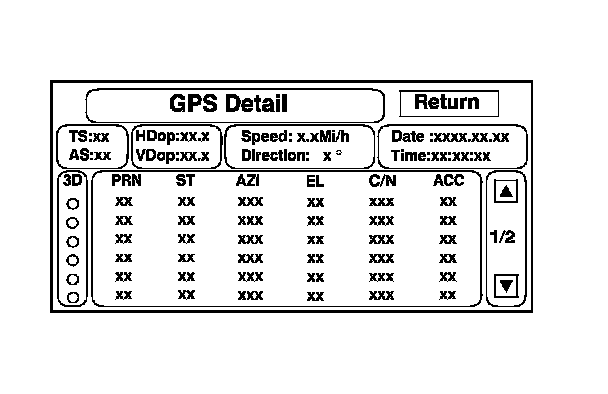
- The box TS/AS and HDop/VDop is for factory use.
- The Speed and Direction information is updated in real time when driving, and can be used to detect intermittent speed sensor problems.
- The Date/Time Information is the same as in Setup screen 2 Adjust Time Zone/Clock.
- If the 3D icon is shown above the yellow dots, this implies that at least four satellites are available for map positioning, and the GPS indicator on the map screen will be green. See the Global Positioning System detailed explanation in the System Description. Description and Operation
- If the row of data in the table below begins with a yellow dot, the AZI and EL fields can be used to locate each satellite PRN# on the circular GPS diagram (see prior screen).
NOTE:
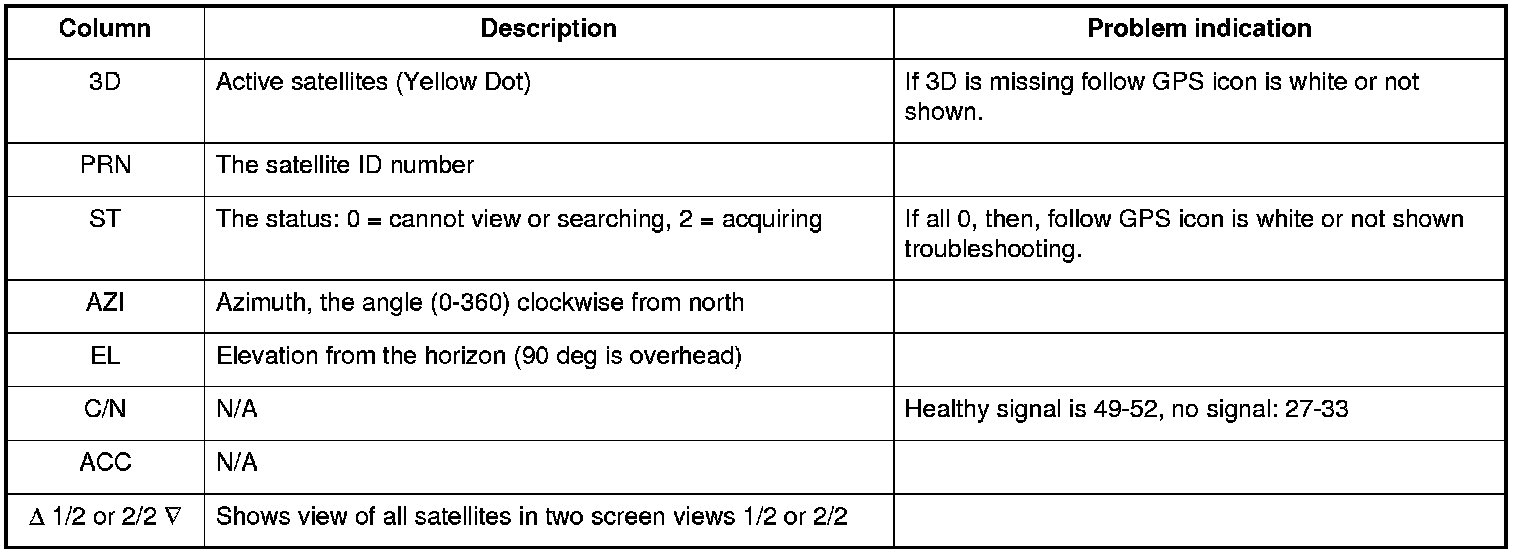
- The table of values shown below define the terms at the top of the columns in the GPS Detail screen.
- The table of values shown below define the terns at the top the columns in the GPS Detail screen.
Yaw Rate
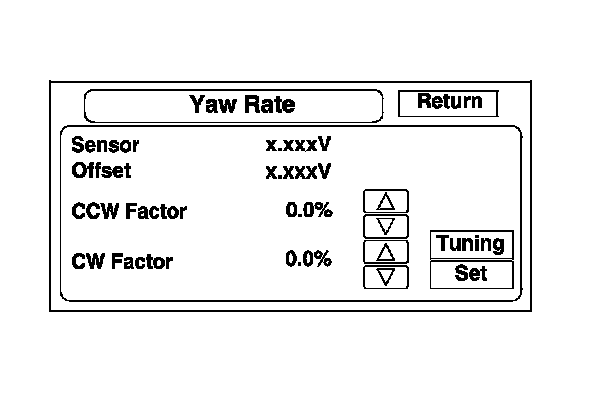
This diagnostic checks the yaw rate sensor in the control unit. This device detects when the vehicle turns, and repositions the vehicle position icon on the map screen. For more detailed information, see the yaw rate sensor theory of operation under System Description. Description and Operation
- Sensor indicates the voltage output from the yaw rate sensor. It should indicate about 2.500 V when the vehicle is stopped.
- Offset is the reference voltage or standard within the yaw rate sensor. It also should indicate about 2.500 V when the vehicle is stopped.
- A sensor output voltage LOWER than the Offset voltage indicates that the vehicle is turning to the right.
A sensor output voltage HIGHER than the Offset voltage indicates that the vehicle is turning to the left.
- The yaw rate offset and sensor should both indicate about 2.500 V when the vehicle is stopped. If either reads zero or 5.000 V, replace the navigation unit.
- The yaw rate offset and sensor should be within +/-0.01 V of each other when the vehicle is stopped. The sensor value should change relative to the offset as the vehicle turns while driving. If not, replace the navigation unit.
Example: Vehicle stopped
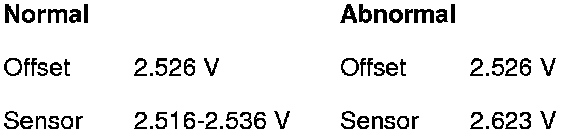
Example: Vehicle turning

The settings CCW Cal Factor, CW Cal Factor, and Set are for factory use only. THIS SHOULD NEVER BE USED.
NOTE: Do not try to adjust the yaw rate sensor without instructions from the factory. See next paragraph for tuning.
Yaw Rate Tuning
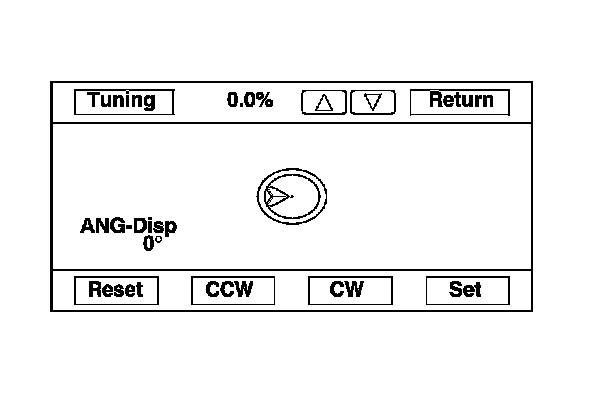
This diagnostic allows you to graphically display problems with the yaw rate sensor.
- The ANG-Disp value accumulates any differences between the offset, and sensor voltages (see Yaw Rate diagnostic). When the sensor functions normally, the random changes in these two voltages generally cancels out, so the value is 0. However if one voltage is consistently higher than the other, then the ANG-Disp value accumulates the constant change.
- The Reset button temporarily clears the angular accumulation (ANG-Disp), and clears the display dots.
- Do not touch the CCW or CW, or Set buttons. These are used for factory setup only.
For serious problems with the sensor values, the stationary test usually confirms whether the sensor is defective. For yaw rate issues related to driving, do the road test described below.
1. Stationary test: If the VP icon spins in place and the ANG-Disp value slowly increases or decreases in value, the yaw rate sensor is defective. Replace the Navigation unit.
2. Road test: Drive the vehicle on a very straight road. Enter the diagnostic mode, select Yaw rate, and touch the Tuning button. While driving down a straight road, the white dots should trace a straight line across the screen. However, if you are driving on a straight road, and you notice the dots constantly dropping down or heading up as you drive, the navigation unit's yaw sensor is defective. You can touch Reset to clear the ANG-Disp, and the dotted line.
3. If either test fails, please enter "Yaw rate sensor defective" for the problem description on the Navigation core return form.
Tire Calibrate
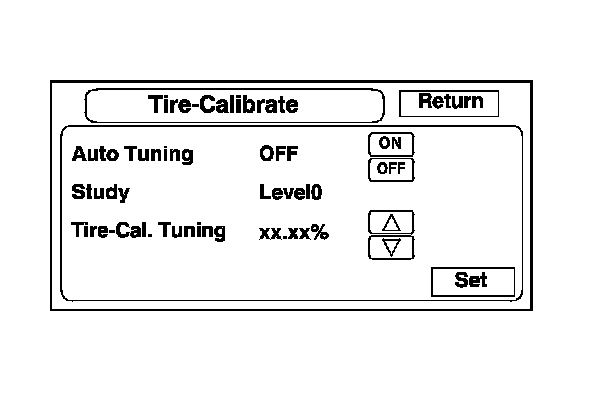
As the vehicle moves, the navigation system receives speed pulses from the PCM. These pulses are converted using a conversion factor to a mph speed that moves the vehicle position (VP) on the map. The navigation system has an internal tuning function that generates and refines this factor based on actual driving. The Level indicates the status of the tuning. At navigation initialization, it begins at 0, and increases to 10 as the navigation system is used.
- The Auto Tuning is factory set to ON, and should remain on.
- The Study indicates the tuning status. If it is less than 10, the unit is still calibrating.
- The Tire-Cal. Tuning and Set should not be used. It is for factory use only.
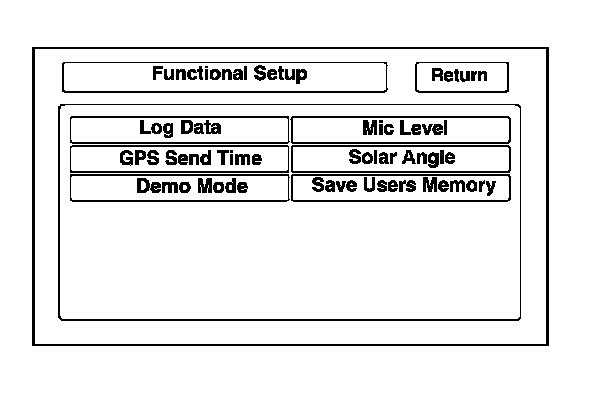
Functional Setup
Select the item you want to check.
- Log Data
- GPS Send Time
- Demo Mode
- Mic Level
- Solar Angle
- Save Users Memory
Log Data
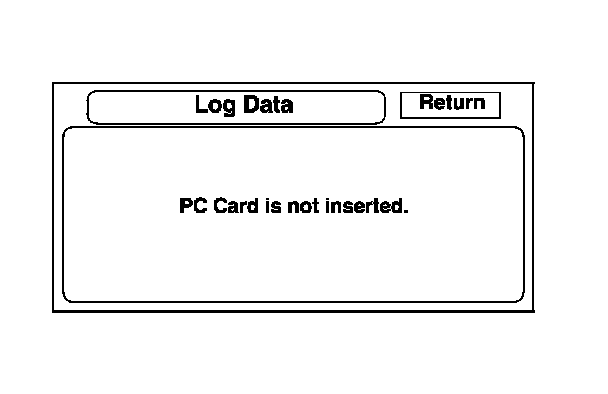
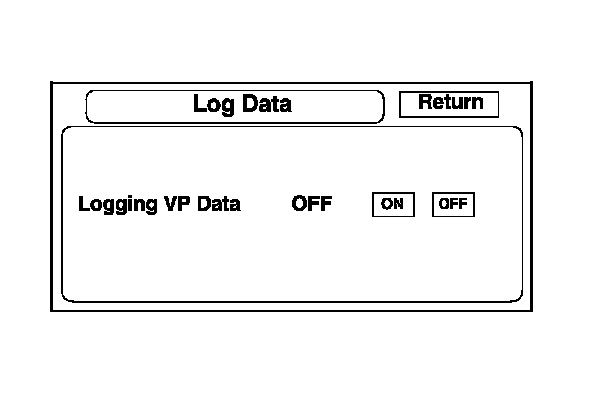
This screen allows the factory to select log data to troubleshoot navigation system issues.
- You should only use the PC card slot to transfer user's data from an old navigation unit to a new one.
- Normally there is no card in the PC Card Slot, and the PC slot door should always be closed. The screen should appear as shown.
- However, if the factory provides a PC card for diagnostic purposes and instructs you to insert it into the card slot (label side up). Follow the factory procedure for gathering test data, and properly ending the test.
GPS Send Time
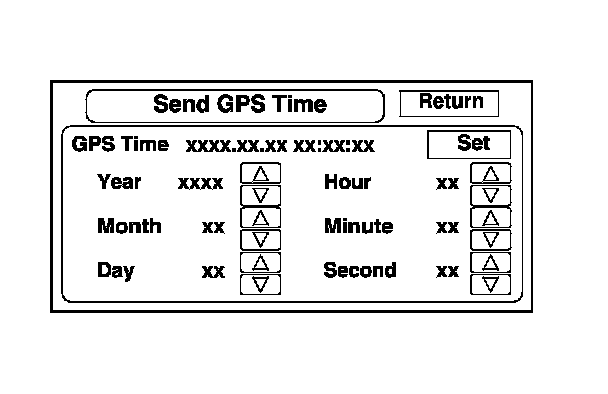
This screen is for factory use only. It allows adjustment of the GPS time. This display updates in real time.
- GPS Time is the time as received from the GPS satellites. It is in Greenwich Mean Time (GMT).
- Date, Hour, Minute, and Set should not be used.
Demo Mode
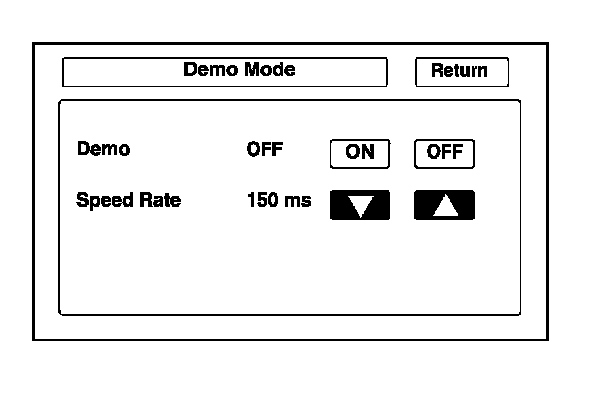
This screen allows the navigation system to drive a route, when the vehicle is stationary. Typical applications include auto shows, and other events.
This feature allows a visitor to enter a destination, and see the system drive to the destination. No speed signal is needed.
- To initiate the mode, select ON.
- Changing the speed rate in ms (milliseconds) is optional, and represents the time between updates of the VP (vehicle position) movement.
- When you increase the rate, the VP slows down because it is updated (moved) at a slower rate.
- When you decrease the rate, VP is faster because it is updated (moved) more frequently.
- 1500 ms is VP at its slowest in demo mode.
- 150 ms is VP at its fastest in demo mode (Default).
- When you turn the key off, the setting automatically returns to the default of Off.
Mic Level
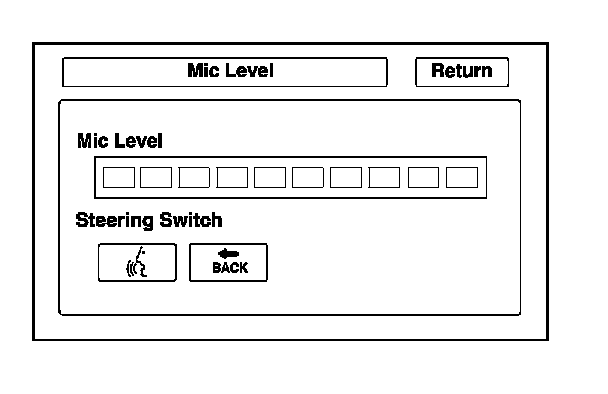
This diagnostic screen allows you to independently test the microphone and the navigation TALK and navigation BACK buttons. They are used to activate the voice control system. The microphone is located near the map light in the ceiling. The microphone can now isolate the driver's voice even when there is noise or other conversations in the vehicle. To properly check the microphones, make sure you are sitting in the driver's seat.
- Press the navigation TALK button on the steering wheel, wait unit you hear a beep, and in a normal voice say "testing". The TALK indicator on the screen should momentarily turn green, and the text "Now Recording..." should appear in yellow. If the Mic Level indicator on the screen does not briefly turn green, then check the wiring from the navigation TALK button to the navigation unit. If there is no Mic Level movement when you speak, or if all the bars are filled without speaking, then you should check the wires running from the microphone to the control unit for opens or shorts. If the wires are OK, substitute a known good microphone, and recheck.
- If all the bars are filled without speaking or with very little background noise, disconnect the microphone for 1 hour, then reconnect it, and recheck. If the symptom is resolved, the microphone had a glitch and is now reset.
- If the mic level bar is full or almost full without you speaking or other back ground noise, replace the microphone and recheck.
- Press the navigation BACK button on the steering wheel. The Cancel indicator on the screen should momentarily turn green. If it does not briefly turn green, check the wiring from the steering wheel navigation BACK button to the navigation unit.
NOTE:
If the radio is off, and there is movement in the indicator-even without speaking, make sure that the vents are not blowing on the microphone.
This should resolve voice control complaints such as:
- Sometimes the system does not understand my commands.
- I have to shout at the navi for a command to be recognized.
- The system just says "pardon".
Solar Angle
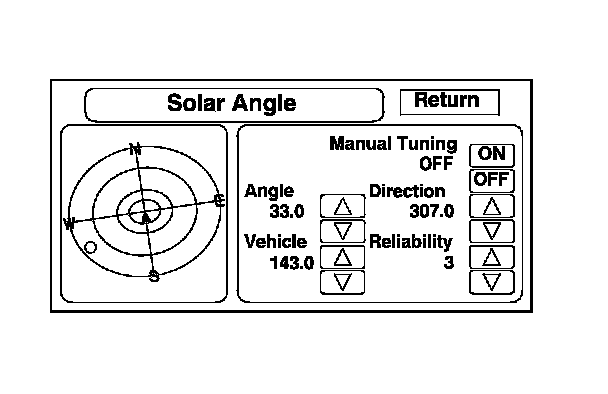
This screen graphically displays the sun's position as determined by GPS.
This screen is for factory use only.
- The manual tuning button should always be OFF.
- The Angle is the angle that the sun (shown with a red dot) is above the horizon.
- The vehicle value represents the angle, clockwise from North, to the direction that the vehicle position (VP) icon is pointing (always points straight up).
- The direction value is the angle, measured clockwise from the VP (straight up) to the suns position.
- The reliability ranges from 1 to 3, and represents the accuracy of the Vehicle Position relative to the sun.
Version
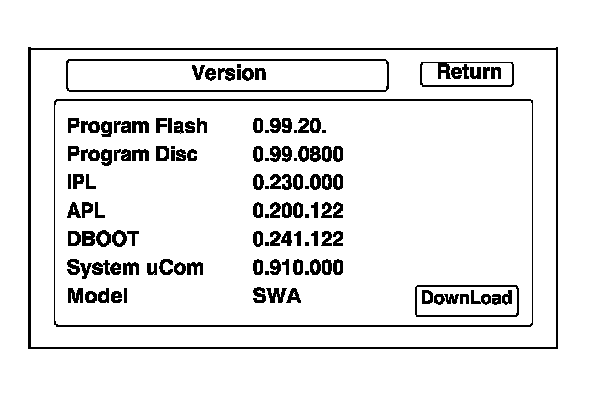
This screen displays the current version of the program, and allows the loading of a new version of the program either from a CD/DVD or from a PC card.
The Program Flash version should always be greater than or equal to the Program Disc version. IPL, APL, DBOOT, and System uCom are for factory use only.
The Model code is SWA, and is for factory use only. This code is stored on a chip in the navigation unit. Therefore, every model has a unique part number for the navigation unit.
NOTE: If any model number other than SWA is displayed, replace the navigation unit with the correct part. The model code tells the navigation unit what software to load off the DVD.
Do not use Download unless instructed to do so by the factory.
Save Users Memory
When replacing the navigation unit, this function allows the dealer to transfer the customer's personal data to the new navigation unit.
This is similar to saving and entering the customer's audio presets when replacing an audio core. The transferred information includes their Setup settings, and personal addresses. The dealer inserts a PC card (like the PC card in the HDS), and then selects the Save Users Memory function. The two functions in this diagnostic screen are Export and Import. Export saves the customer's data to the PC card, and Import moves the PC card files to the new navigation core.
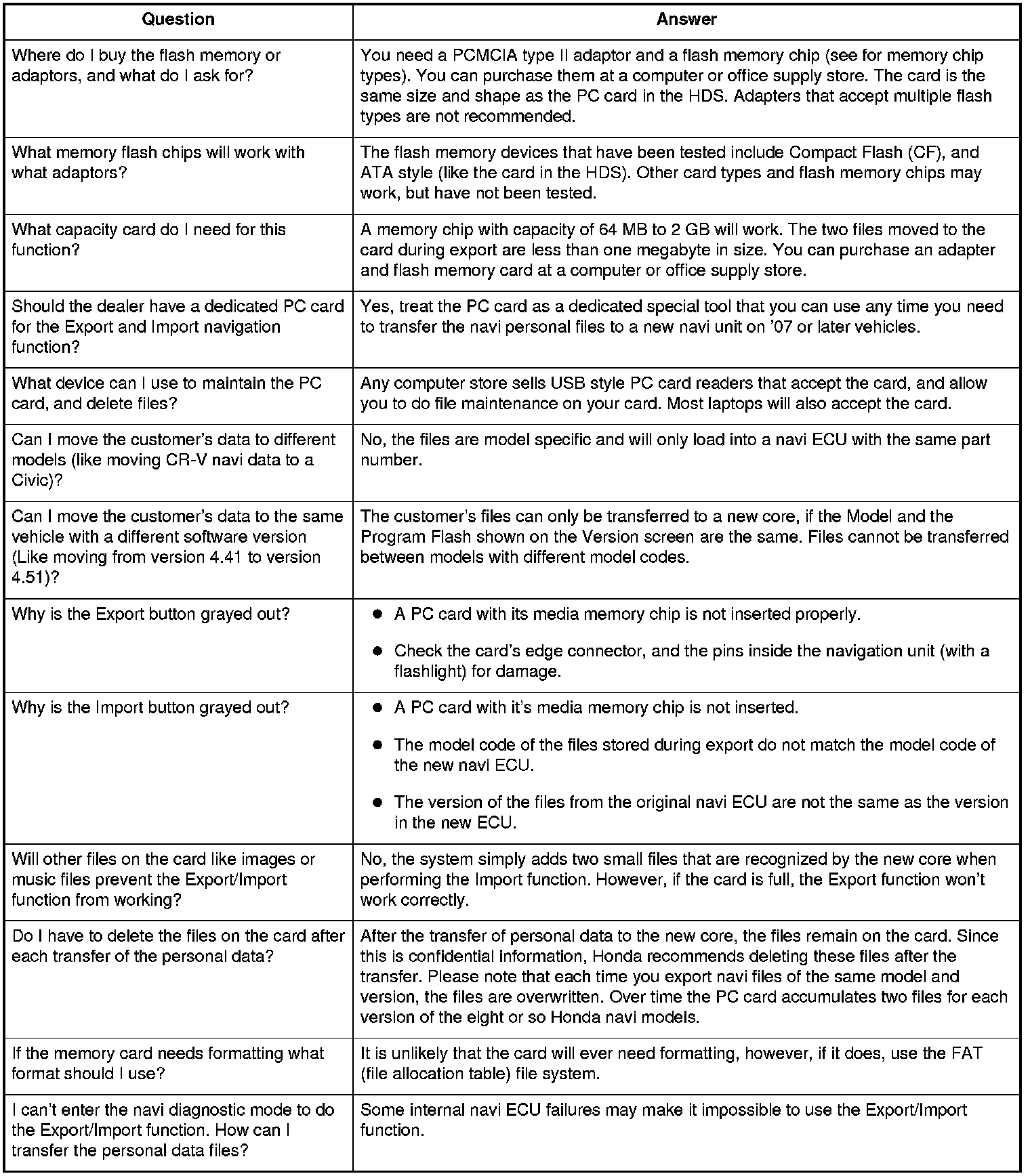
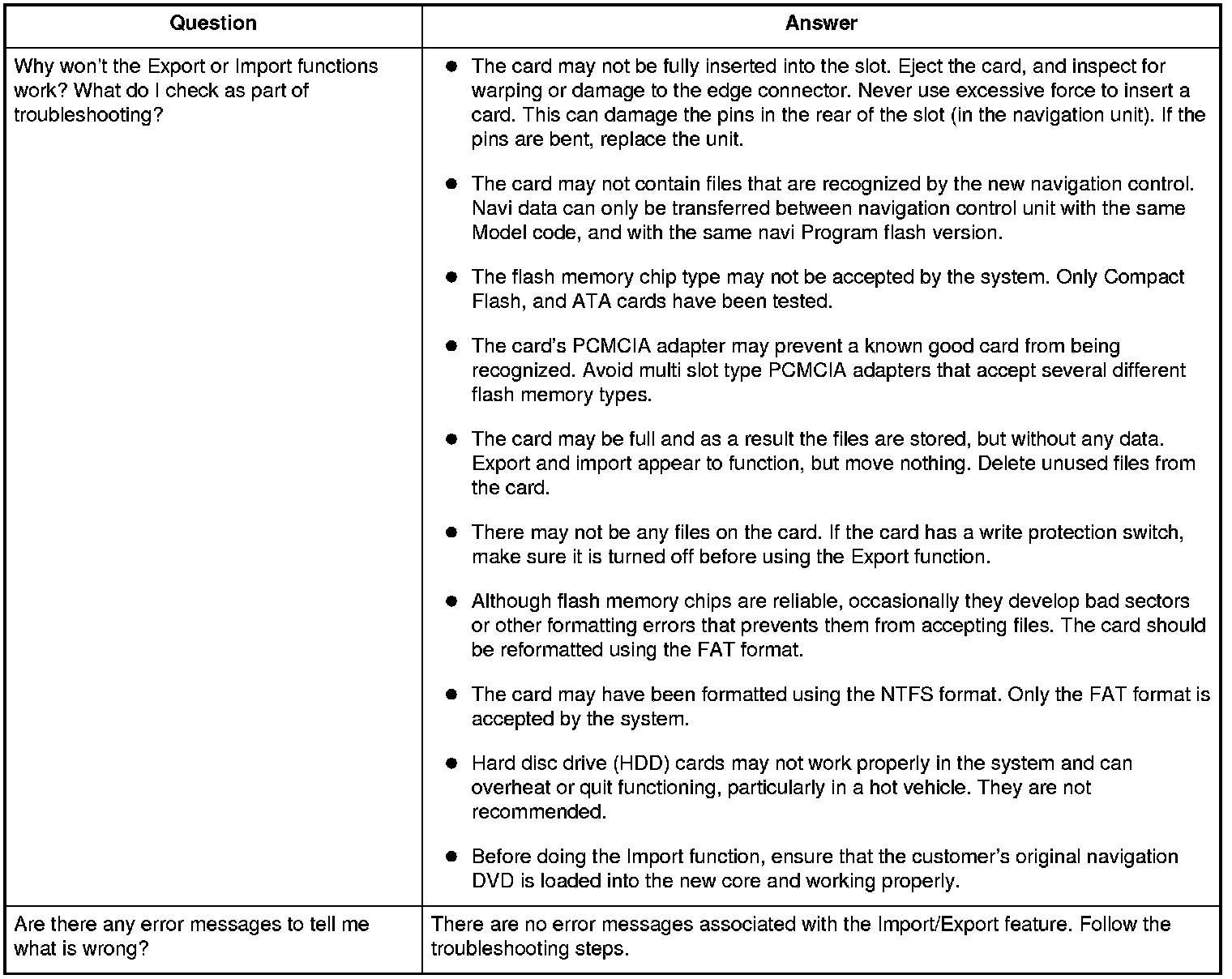
See the FAQs below for information regarding PC cards, and how to use of this function.
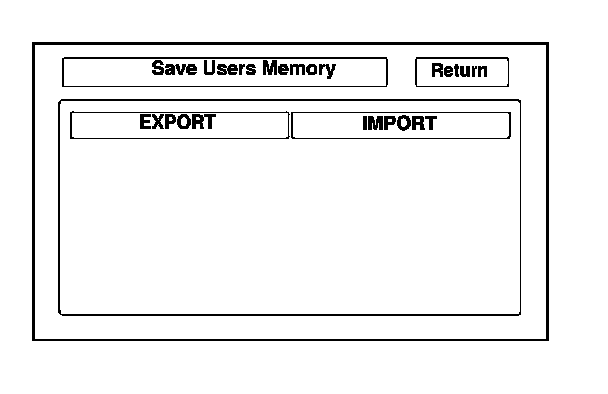
Export
Select this button to move the customer's data from the original navi ECU to the PC card. Select YES on the Export User Data Confirmation screen. The process takes only a couple of seconds. The system stores two small files on the card.
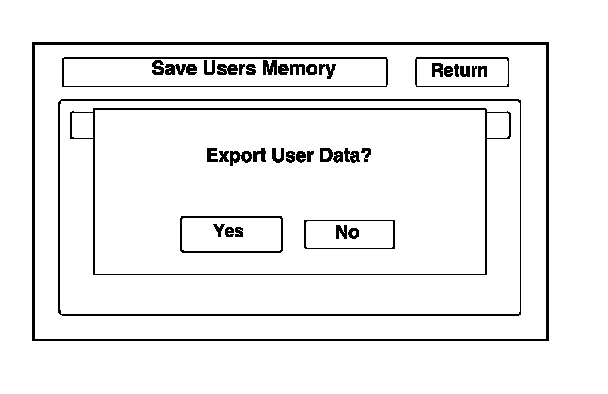
Import
After installing the customer's original DVD in the new core, allow the system to boot up. Insert the PC card in the new core and enter the navigation diagnostic mode.
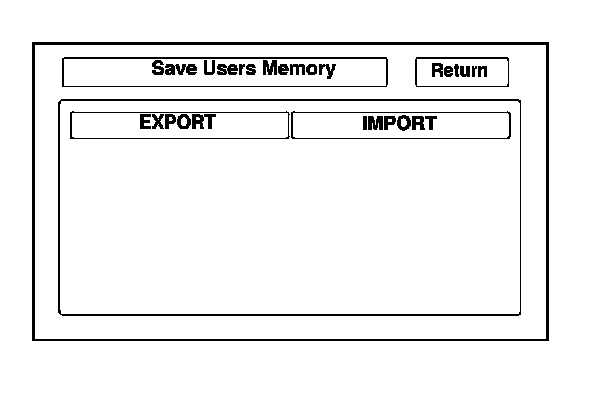
Select YES on the Import Confirmation screen.
Import moves the two files stored by the Export process from the PC card to the new navi ECU. When the transfer is finished (a few seconds) the system will automatically reboot. After the system reboots, remove the PC card from the PC slot.
If the Import button is grayed out, follow the troubleshooting in the FAQs. The customer's files can only be transferred to a new core if the Model and the Program Flash shown on the Version screen are the same. Files cannot be transferred from CR-V to a Civic, or from a CR-V with version 1.07.00 to a CR-V with version 1.32.00.
PC Card FAQs
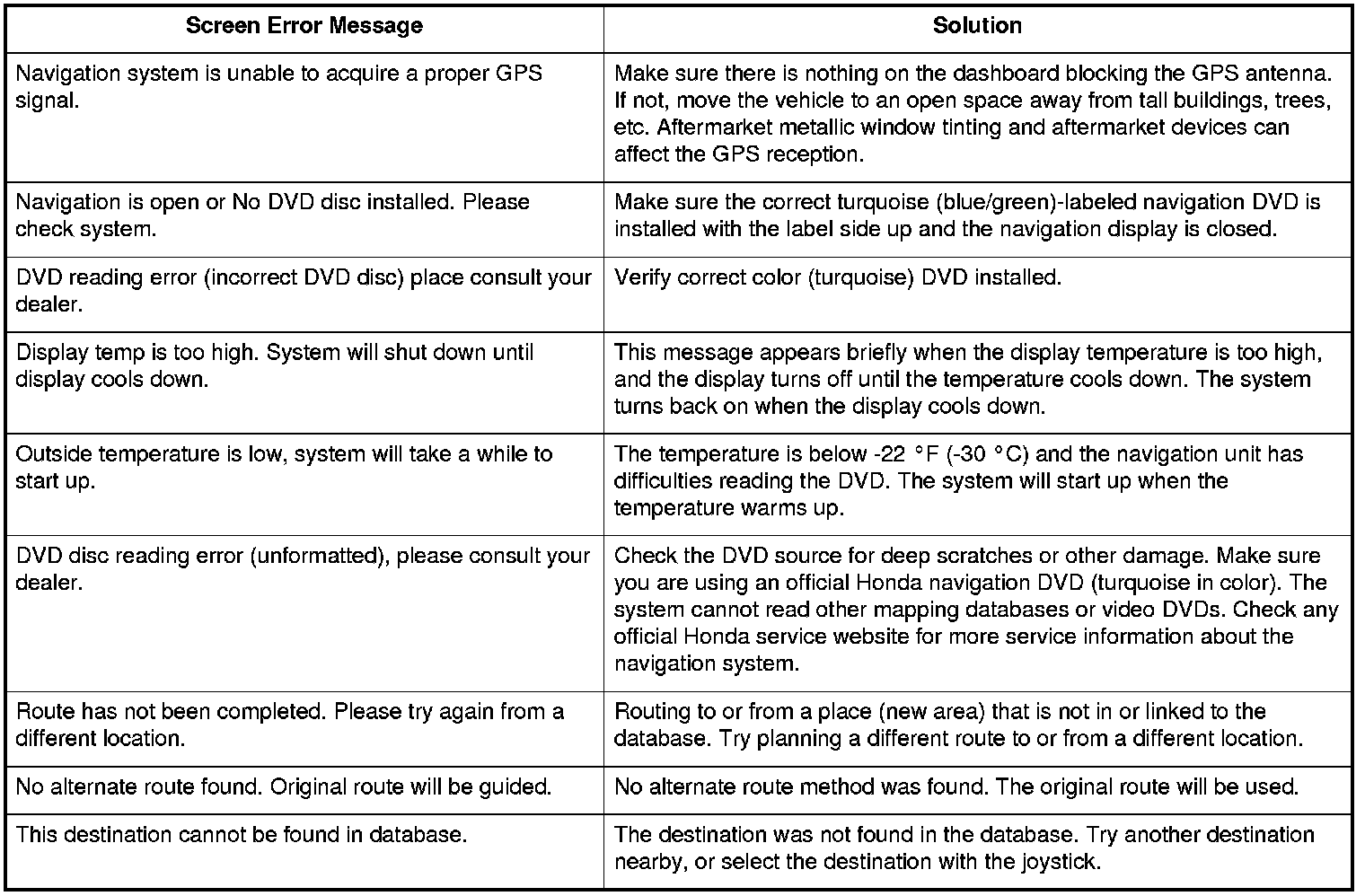
Error Message Table
Check any official Honda service website for more service information about error messages.