Campaign - Software Update For The Steering Wheel Audio Control
11-051March 16, 2012
Applies To:
2012 Civic Hybrid without Navigation - Check the iN VIN status for eligibility
Product Update: Software Update for the Steering Wheel Audio Controls and for Radio Display and Radio Button Illumination
(Supersedes 11-051, dated November 8, 2011, to revise the information marked by the black bars and asterisks)
REVISION SUMMARY
*^ Under SOFTWARE INFORMATION, a new disc was issued.
^ Under REPAIR PROCEDURE, the software number was changed.*
BACKGROUND
The audio remote switch on the steering wheel and the backlighting for the radio display and the radio buttons may stop working because of an error in the audio unit software.
CUSTOMER NOTIFICATION
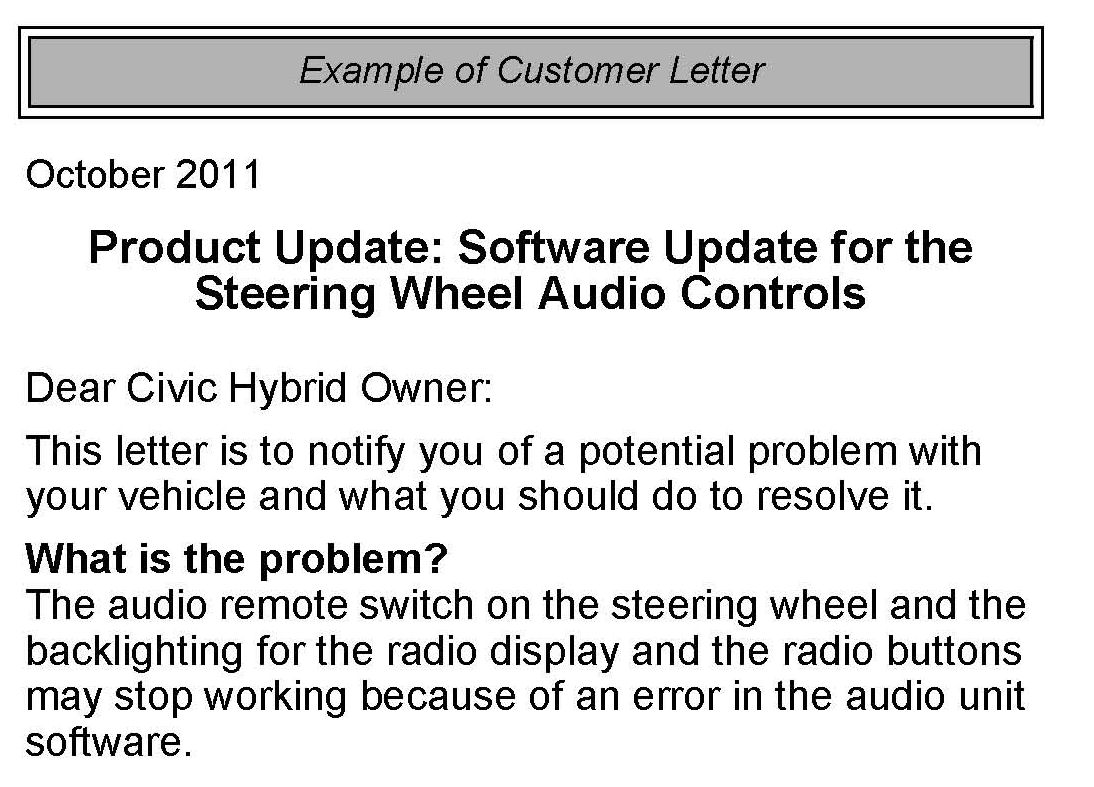
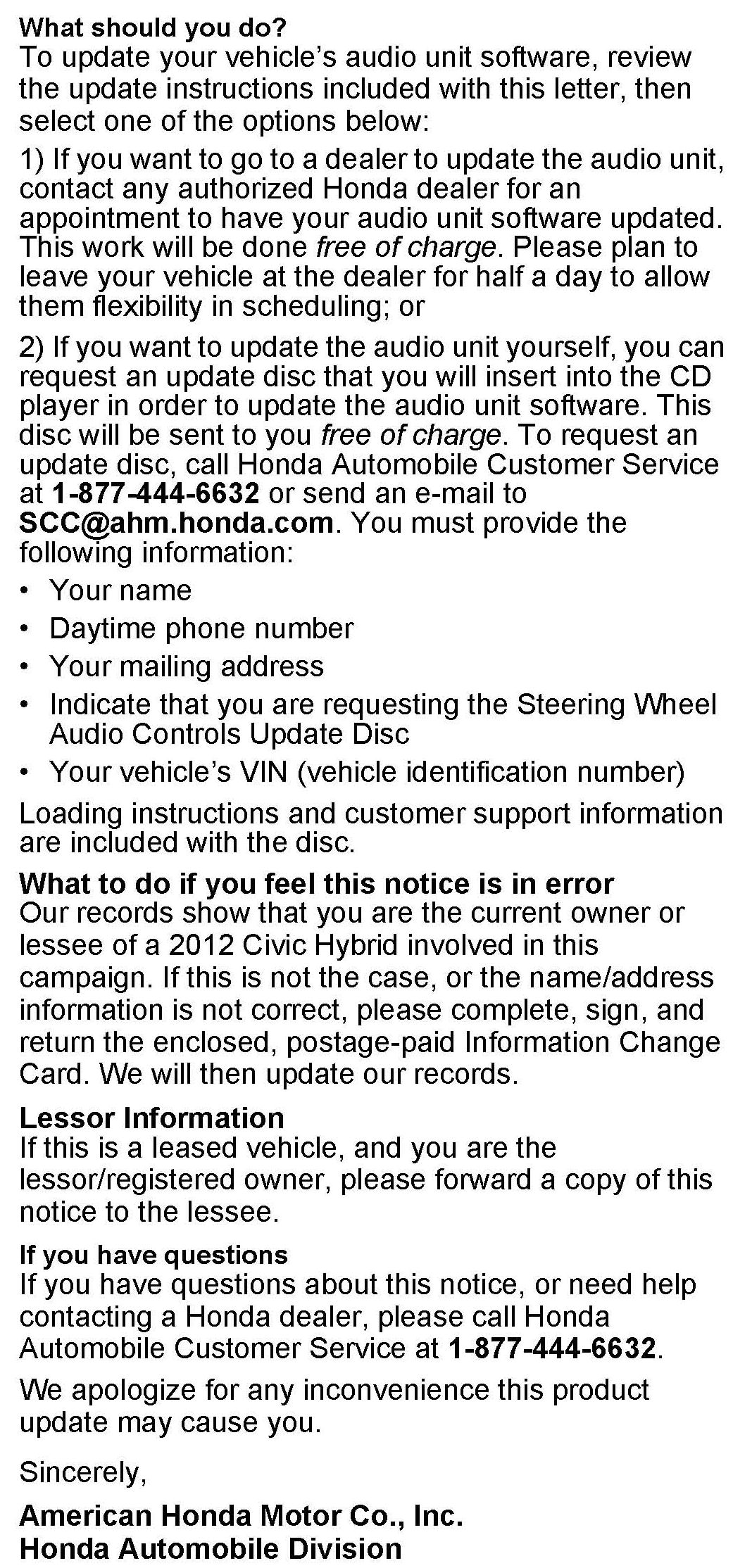
All owners of affected vehicles will be sent a notification of this campaign.
Do an iN VIN status inquiry to make sure the vehicle is shown as eligible.
In addition, check for a punch mark above the first character of the engine compartment VIN. A punch mark in that location means this campaign has already been completed.
Some vehicles affected by this campaign may be in your new or used vehicle inventory. Repair these vehicles before they are sold.
CORRECTIVE ACTION
Update the audio unit software.
SOFTWARE INFORMATION
Each dealership received a copy of this disc. Use the tool number below if you need to order replacements.
*NOTE:
Make sure you dispose of the previous version of this disc (T/N 07AAZ-TR0A100)*
Audio Unit Software Update Disc:
* T/N 07AAZ-TROA101*
WARRANTY CLAIM INFORMATION
Operation Number: 0105A3
Flat Rate Time: 0.2 hour
Failed Part: P/N 35880-TRO-A01
Defect Code: 5UT00
Symptom Code: R9000
Skill Level: Repair Technician
REPAIR PROCEDURE
1. Turn the ignition switch to ON (II).
2. Check the audio remote switch to see if it is working now. If it doesn't work, do a battery cable reset for 10 minutes to temporarily clear the problem before continuing. For more information how to do a battery cable reset, refer to the ServiceNews article Try a Battery Cable Reset for Those Odd Electrical Problems."
3. Make sure the audio menu appears on the iMID (intelligent Multi-Information Display) so you can see the iMID screens during the update. If the audio menu is not on the iMID, repeatedly press the (Display/Information) button until the audio menu appears.
4. Using the power button),turn off the audio unit.
5. Turn the ignition switch to LOCK (0), then remove the key, and wait for the iMID to turn off.
6. Start the engine.
7. To enter the audio update download screen, do this:
^ Press and hold the following buttons in the following order, all within 2 seconds:
- Audio preset button No.2
- Audio preset button No.6
- CD button
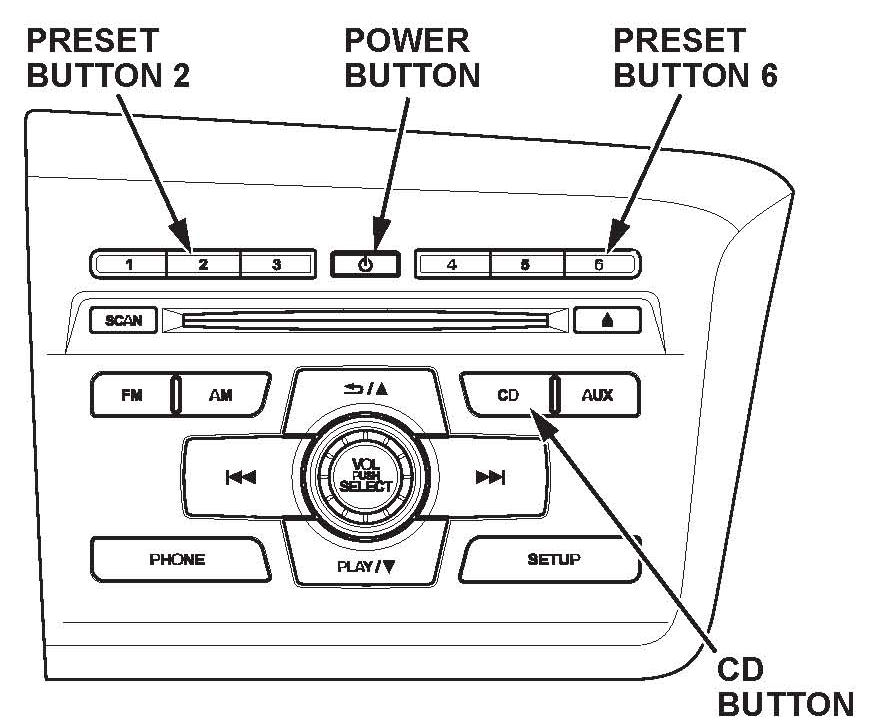
- Audio unit power button
^ After about 5 seconds, the A-DIAG DOWNLOAD screen appears. Release the buttons.
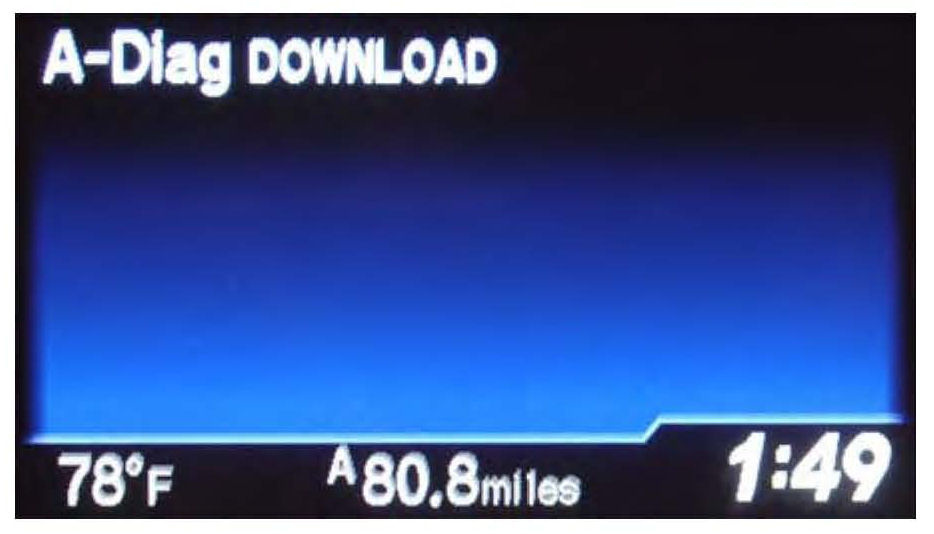
NOTE:
If the A-DIAG DOWNLOAD message does not appear, or the audio unit turns on, turn the audio unit off, and turn the engine off. Restart the engine, then repeat step 7.
8. Update the audio unit software:
^ Insert the update disc (T/N 07AAZ-TROA101) into the CD player.
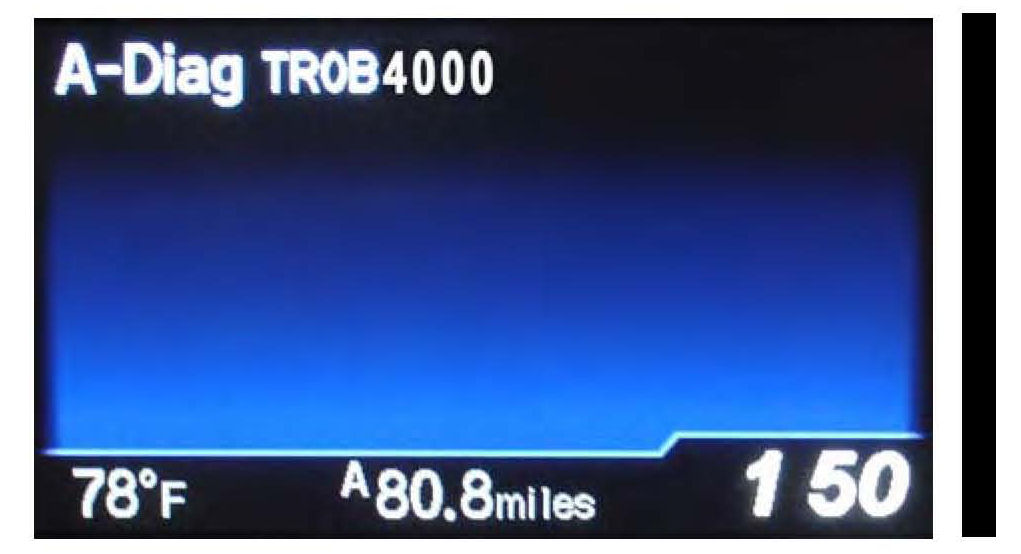
^ Wait for the audio unit software update version number to appear on the iMID.
^ Start the update by pressing and releasing the power button.
^ The audio unit button backlights slowly blink to indicate that the update is loading (about 7 minutes).
NOTE:
If the audio unit button backlights blink quickly, there was a problem loading. Repeat steps 1 thru 7.
^ Do not eject the disc during this procedure.
^ When the update is done, the update disc is automatically ejected. Remove the disc, and turn the ignition switch to LOCK (0).
^ If you leave the vehicle for more than 7 minutes, the disc may eject and then be pulled back in. This may result in a "disc error" message. It is important to check the software version after the update (see step 9).
9. Confirm the update:
a) Turn the ignition switch to ON (II), and make sure the audio menu appears on the iMID.
b) Turn off the audio unit.
c) Turn the ignition switch to LOCK (0), then remove the key, and wait for the iMID to turn off.
d) Start the engine.
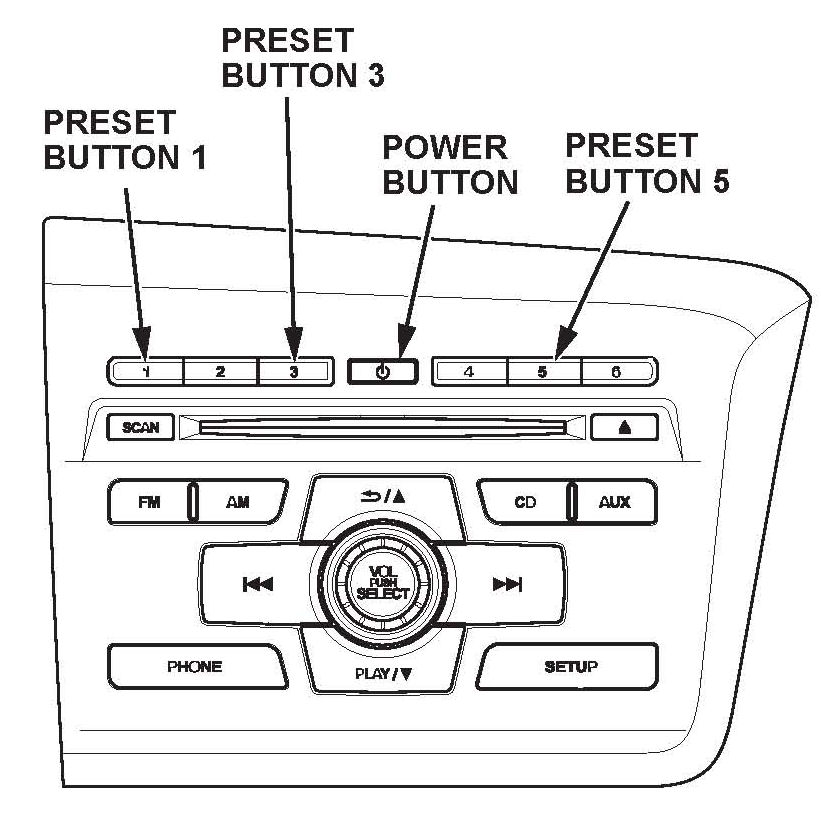
e) Press and hold the following buttons in the following order, all within 2 seconds:
- Audio preset button No.1
- Audio preset button No.3
- Audio preset button No.5
- Audio unit power button
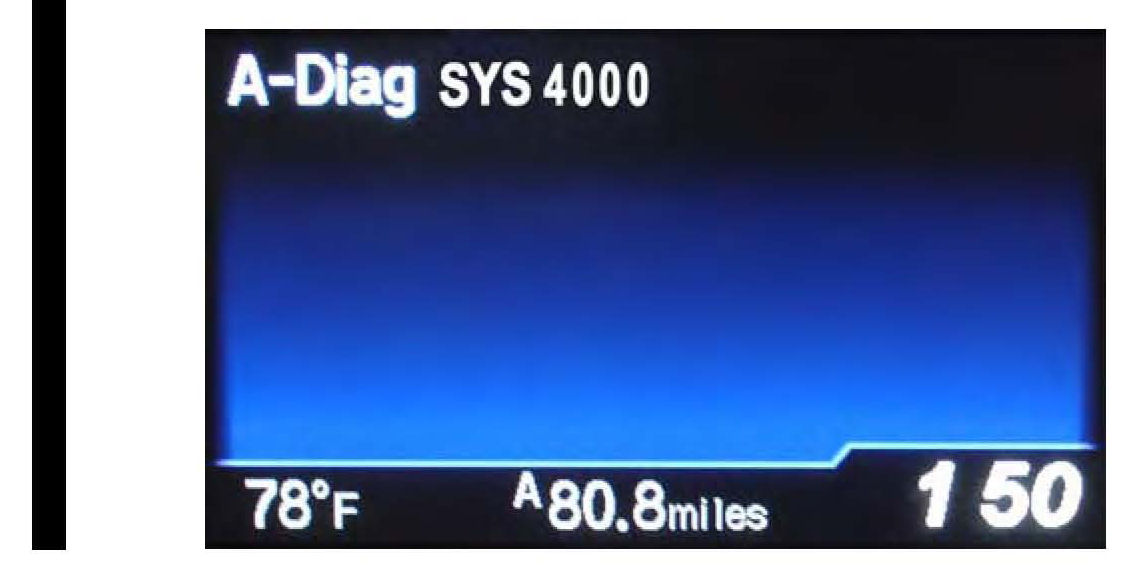
* f) After about 5 seconds, the audio unit software version screen appears. Release the buttons. The version should be SYS4000.*
NOTE:
^ If the A-DIAG SYS screen does not appear, or the audio unit turns on, turn the audio unit off and repeat step 8.
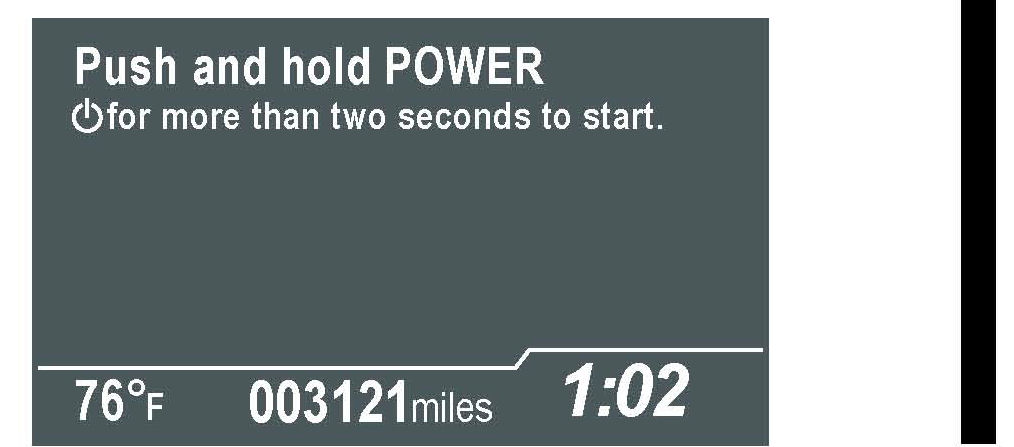
* ^ If the Anti-Theft System screen appears, press and hold the audio unit power button to exit the anti-theft mode. Turn the ignition switch to LOCK (0), restart the engine, then repeat step 9e to check the software version.*
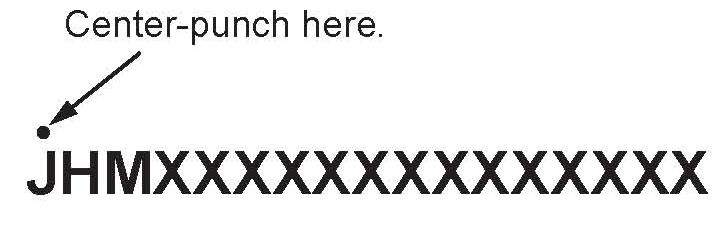
10. Center-punch a completion mark above the first character of the engine compartment VIN:

Disclaimer